Uploading Documents
The Upload Documents Module is a crucial functionality within our product that empowers users to upload documents tailored to a specific input source. This comprehensive documentation explains how to effectively utilize the Upload Documents Module to upload documents associated with a particular project and subtype that share a common input source location.
The Upload Documents Module provides users with a dedicated tool to upload documents directly related to a specific input source. By leveraging this module, users can streamline the process of associating documents with particular projects and subtypes that utilize the same input source location.
Key Features of the Upload Documents Module
The Upload Documents Module encompasses the following key features:
Targeted Document Upload: The module enables users to upload documents that correspond to a specific input source.
Project and Subtype Association: Users can associate uploaded documents with a particular project and subtype that share the same input source location.
Note:
If you encounter any issues, contact your system administrator.
Accessing Upload Documents
To access the Upload Documents page, follow these steps:
-
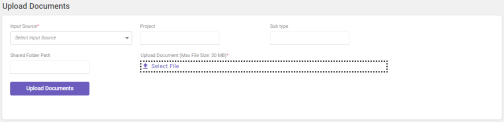
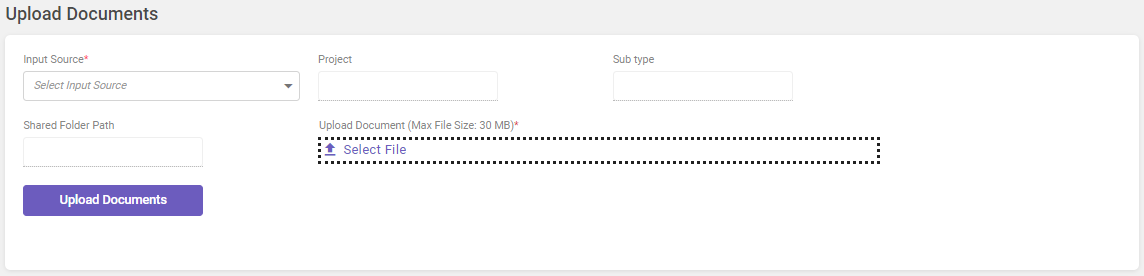
In the main menu, under Documents Processing, click Upload Documents. The Upload Documents page opens.
-
Select the required input source type from the Input Source drop-down list. Based on the input source type selected, the Project, Sub-type, and Shared Folder path gets visible.
-
Click Select File to browse and select the files to be uploaded.
Note:
-
The document path specified in the basepath field on the Application settings screen will be the location from which you can browse and upload documents on the Upload Documents page.
-
For details about the supported file types, refer file types.
-
Only one file can be uploaded at a time. To upload multiple files, create a zip and then upload.
-
To restrict the input file size, refer input source setting.
-
If a user attempts to upload a duplicate document within a certain time frame, a notification will appear as The file "file name" could not be uploaded on DD/MM/YYYY HH:MM:SS as a document with the same name is already in process for input source: <input name>.
-
Uploading a duplicate file through the Rest API will result in the file being discarded. A message will inform you that the uploaded file is already present for processing, along with a reference number as The file "file name" is already present for processing. Reference number: "reference number". This message is shown if the input service is stopped or the task sleep time is increased.
-
-
Once you've selected the file(s) you wish to upload and ensured all necessary details are set, click Upload Documents to upload the documents.
NEXT
Now that you have uploaded documents, let's monitor the document progress.
Useful links